Most modern office copiers aren’t really “printers” anymore.
They’re networked computers with a paper output tray.
Which means, in most cases, the desktop in the middle is optional.
The trick is knowing which shortcut fits your situation, without installing junk you don’t need or breaking security rules you didn’t know existed.
When you just need a document out quickly
If your phone and the copier are on the same Wi-Fi network, start here.
iPhone or iPad
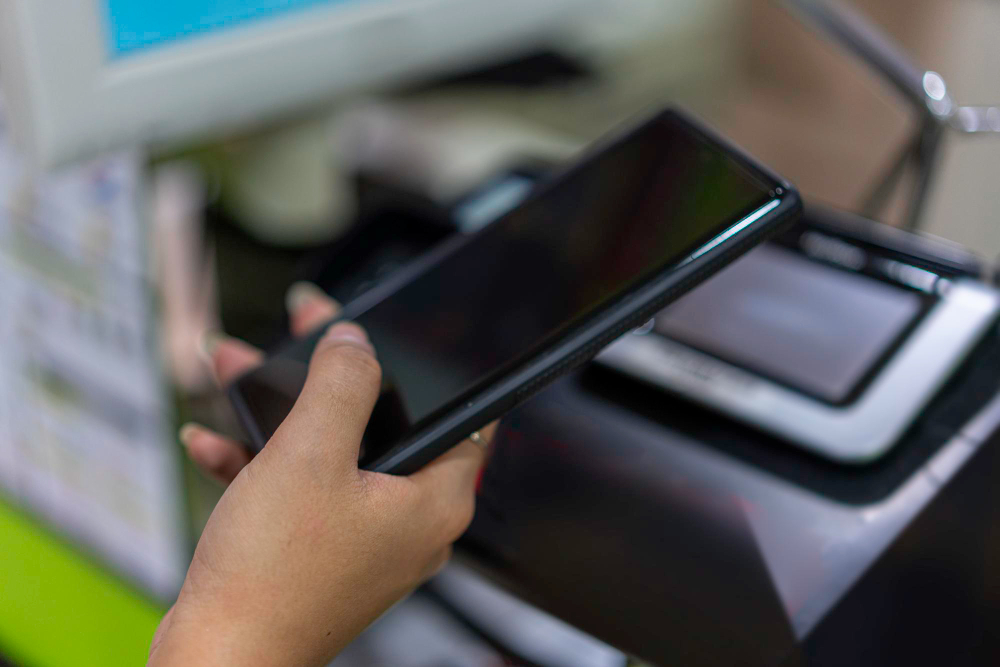
Use the built-in print option. Open the file, tap Share, tap Print, choose the copier. No setup, no app.
Android
Use the system print option. Most Android phones already include a universal print service that talks to business copiers without extra drivers.
This works well for simple PDFs, emails and photos.
One caveat.
If your office uses user codes or department billing, this method often fails silently. The job never prints. In that case, you need the manufacturer’s app.
When you need scanning, codes, or control
If you want to scan a document to your phone, choose trays, or enter a billing code, you’ll need the app designed for your specific machine.
These apps turn your phone into a lightweight control panel.
They matter because they remove the email step entirely.
You stand at the copier, place the paper on the glass, tap Scan on your phone, and the file lands directly on your device.
They’re also the only reliable way to handle locked printing, multi-page PDFs, and office accounting rules.
The downside is obvious.
Each brand has its own app. They vary wildly in polish. But functionally, they do the job.
When you’re not allowed on the network
This is where people usually give up. They don’t need to.
Wi-Fi Direct
Many copiers broadcast their own temporary Wi-Fi signal. You connect your phone directly to the machine, print, then switch back to normal Wi-Fi. No access to the office network required.
Tap-to-connect
On some machines, Android phones can pair instantly by tapping the NFC marker on the copier. No passwords, no menus.
On-screen QR codes
Newer devices often display a QR code on the panel. Scan it with your phone camera, and you’re connected for that session only.
These options exist specifically for guests and secure environments. They’re underused because no one explains them.
The security problem most people miss
Mobile printing creates distance.
You can hit Print from the other side of the building.
Your document arrives immediately.
Anyone walking past the machine can pick it up.
That’s how confidential papers leak.
The fix is simple and underused.
Use locked or held print.
Set a short PIN.
The job stays in memory until you walk up and release it at the panel.
If you print anything sensitive from your phone, this should be the default, not the exception.
Mobile printing: here’s a reminder
| What you’re trying to do | The sensible option |
| Print a quick PDF or email | Built-in phone printing |
| Scan directly to your phone | Manufacturer’s app |
| Use billing or user codes | Manufacturer’s app |
| Print as a guest | Wi-Fi Direct, NFC, or QR |
| Avoid documents being grabbed | Locked or held print |
Mobile printing isn’t about being clever.
It’s about removing pointless steps without creating new risks.
Once you know which method fits your situation, it becomes boringly reliable. That’s exactly how it should be.